> For the complete documentation index, see [llms.txt](https://cytrence.gitbook.io/cytrence-kiwi-document/llms.txt). Markdown versions of documentation pages are available by appending `.md` to page URLs; this page is available as [Markdown](https://cytrence.gitbook.io/cytrence-kiwi-document/kiwi-pro-plus-features/macro-for-automation.md).
# Macro for Automation
Create and execute macros to automate repetitive tasks on the target computer, improving efficiency and reducing manual input.
You can use macros to minimize keystrokes and automate tasks. You can set up to five macros in the Settings -> Macros tab.
In the example above, the first macro is set up to execute the command "ls -l" on the target computer. If you have a Terminal window active and focused on the target computer, the "ls -l" macro will list the files in the current directory. The second macro is configured to open Firefox.
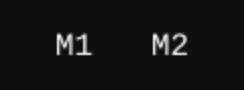
By default, the "Show on toolbar" option is enabled, and the macros will appear on the toolbar labeled as M1, M2, and so forth.
To execute the macros, you can click the buttons on the toolbar or navigate to the "Send Keys to Target" menu and choose the macro you wish to run.
{% hint style="info" %}
The size of the macros is limited to 1,000 characters.
{% endhint %}