> For the complete documentation index, see [llms.txt](https://cytrence.gitbook.io/cytrence-kiwi-document/llms.txt). Markdown versions of documentation pages are available by appending `.md` to page URLs; this page is available as [Markdown](https://cytrence.gitbook.io/cytrence-kiwi-document/kiwi-pro-plus-features/atx-control.md).
# ATX Control
Document about Cytrence ATX control board's functionalities, setup and configurations.
The GPIO ports equipped in Kiwi Pro and Kiwi+ models can be used to control the ATX power switch, allowing you to power on or off the target computer when connected with a Cytrence ATX control board.
The Cytrence ATX control board is a separate component (sold individually) that takes input from the GPIO port on Kiwi and send the power control signals to the target computer through a standard Ethernet patch cable via the RJ45 connectors.
{% hint style="info" %}
**Note:** Kiwi Pro or Kiwi+ models is required to work with the ATX control board, as the Kiwi Standard model does not support GPIO functionalities.
{% endhint %}
{% hint style="info" %}
While the Kiwi Pro model has six GPIO pins for two sets of ATX controls, the Kiwi+ models have three GPIO pins with one set of ATX controls. See detailed pinouts below:
{% endhint %}
| Pinout for Kiwi Pro | Pinout for Kiwi+ |
| :-------------------------------------------------------------------------------------------------------------------------------------------------------------------------------------------------------------------------------------------------------: | :-------------------------------------------------------------------------------------------------------------------------------------------------------------------------------------------------------------------------------------------------------: |
| | |
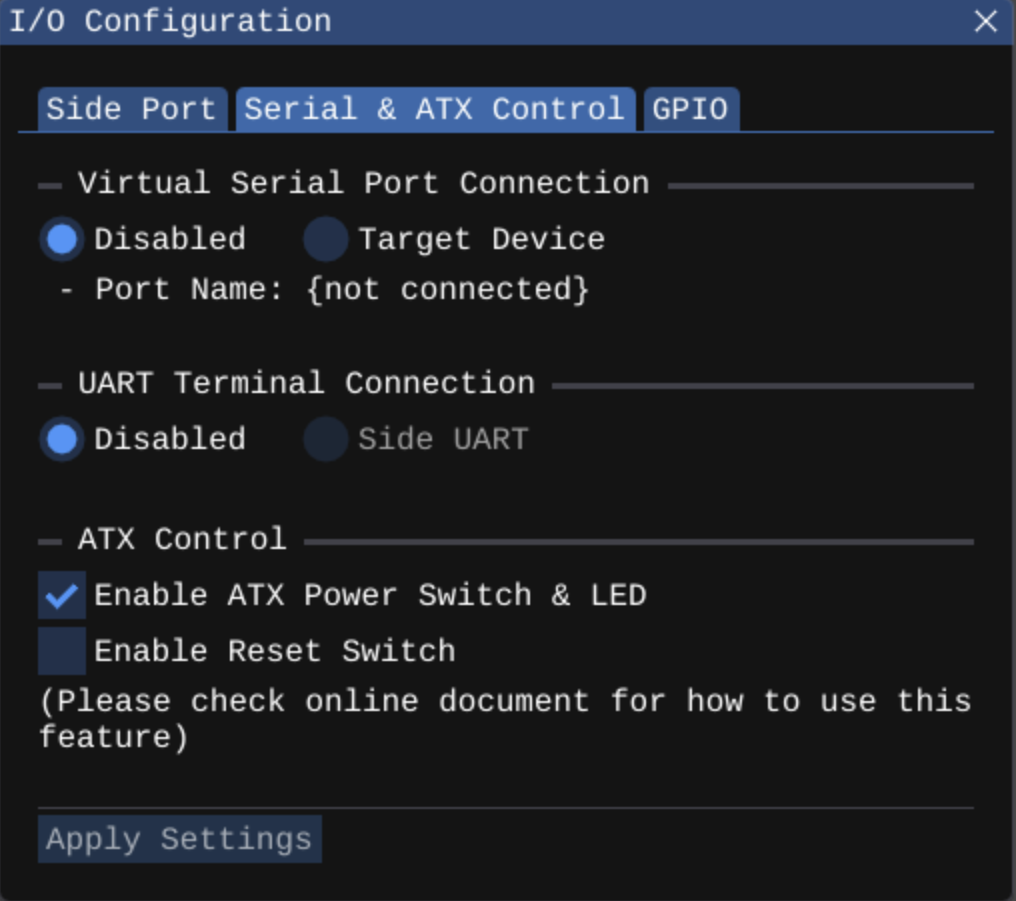
The ATX control can be enabled/disabled in the I/O conifguration dialog of the Settings.
Once ATX Control is enabled, a new power button will appear to the right of the GPIO/Port button on the toolbar.
Press the power button; if the ATX control board is properly connected to the target computer's ATX power switch, the target computer will power on.
The power button will turn green when the target computer is successfully powered on, mirroring the status of the power LED.
For more details on the ATX control board including the demo, please visit [www.cytrence.com](http://www.cytrence.com).

 |
|  |
The ATX control can be enabled/disabled in the I/O conifguration dialog of the Settings.
|
The ATX control can be enabled/disabled in the I/O conifguration dialog of the Settings.